Add new object
- Click "Add object" button or you can use one of the suggested shortcuts
(N/Ctrl+Shift+1..0)
- Click on the image to start annotating with Lasso tool by default, and adjust the mask. You can also use Brush tool
 , Auto-selection
  ,or AI annotation
  .
.
- Double-click, (
E) or to finish object creation.
Draw the object
- Select the object from an object list
 (
( i).
- Click and choose the shape and size (
[) (]) of the brush.
- Click and hold to draw the line of any required shape.
- Click where the line starts then press
Ctrland click where the line ends to draw a straight line.
- The same functions are available with Erase tool
 .
.
Select an object
Right-click on the object or choose it from the list of objects (
(i).Change object type
You can change object types within one annotation shape. If you have a few bitmap objects in the list (
(i), you can swap the type of the existed object, to do so:- Select an object.
- Click
 :
:
- Choose one of the given options in the drop-down menu.
Delete an object
To delete object completely:
- Select an object.
- Click
 or
or Backspace.
Change the Stacking order
- Select the object.
- Click
 and choose one of the options from the drop-down menu.
Move the object
- Select the object.
- Click
 (
(]) and drag the object.
- Click “Apply” (
E).
Redraw
- Select the object.
- Click
 or R .
- Draw a new mask.
Edge smoothing

- Select the object.
- Click

- Adjust scroll sensitivity to smooth distorted annotation by dragging the slider
- Click “Apply” (
E).
You can adjust the line accuracy of this drawing with the "Sensitivity" slider.
Auto-Selection
- Select the object.
- Click and put a dot over the object.
- Fine-tune the accuracy of the selection by adjusting the Sensitivity.
- Click “Apply” (
E).
If the tool detects and highlights similar pixels outside of the object you want to annotate, you can use the Subtract Auto-Selection  tool. Just put a dot over the excessive pixels and adjust the Sensitivity threshold to remove them.
tool. Just put a dot over the excessive pixels and adjust the Sensitivity threshold to remove them.Spot Healing
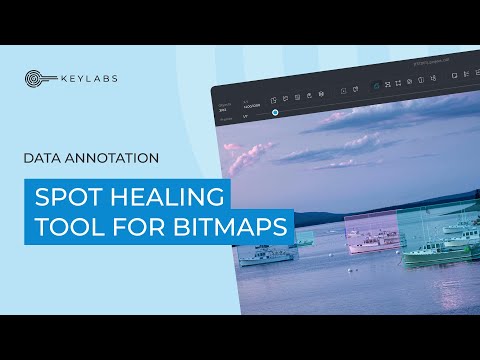
- Select the object.
- Click
 .
.
- Choose to remove holes (absent pixels within the object's mask), remove islands (excessive pixels outside the mask), or both.
- Modify the tool's sensitivity by dragging the threshold slider.
- Click “Apply” (
E).
Tracking object
- Select the object.
- Click
 .
.
- Select the number of frames on which the object needs to be tracked following the current frame.
- Click “Apply” (
E).
 Made with Bullet